How-To & Tutorials / Match Day Craft
Pre-match minutes fly by quickly. Between checking studs, confirming pitch markings, and conducting the coin toss with team captains, the last thing an official needs is a complicated, slow setup routine.
Whether you are officiating a local derby, a school tournament, or a high-stakes league clash, RefManager simplifies fixture preparation. Here is how to configure your entire fixture from the home screen to kickoff in under a minute.
Step 1: Start from the Home Hub
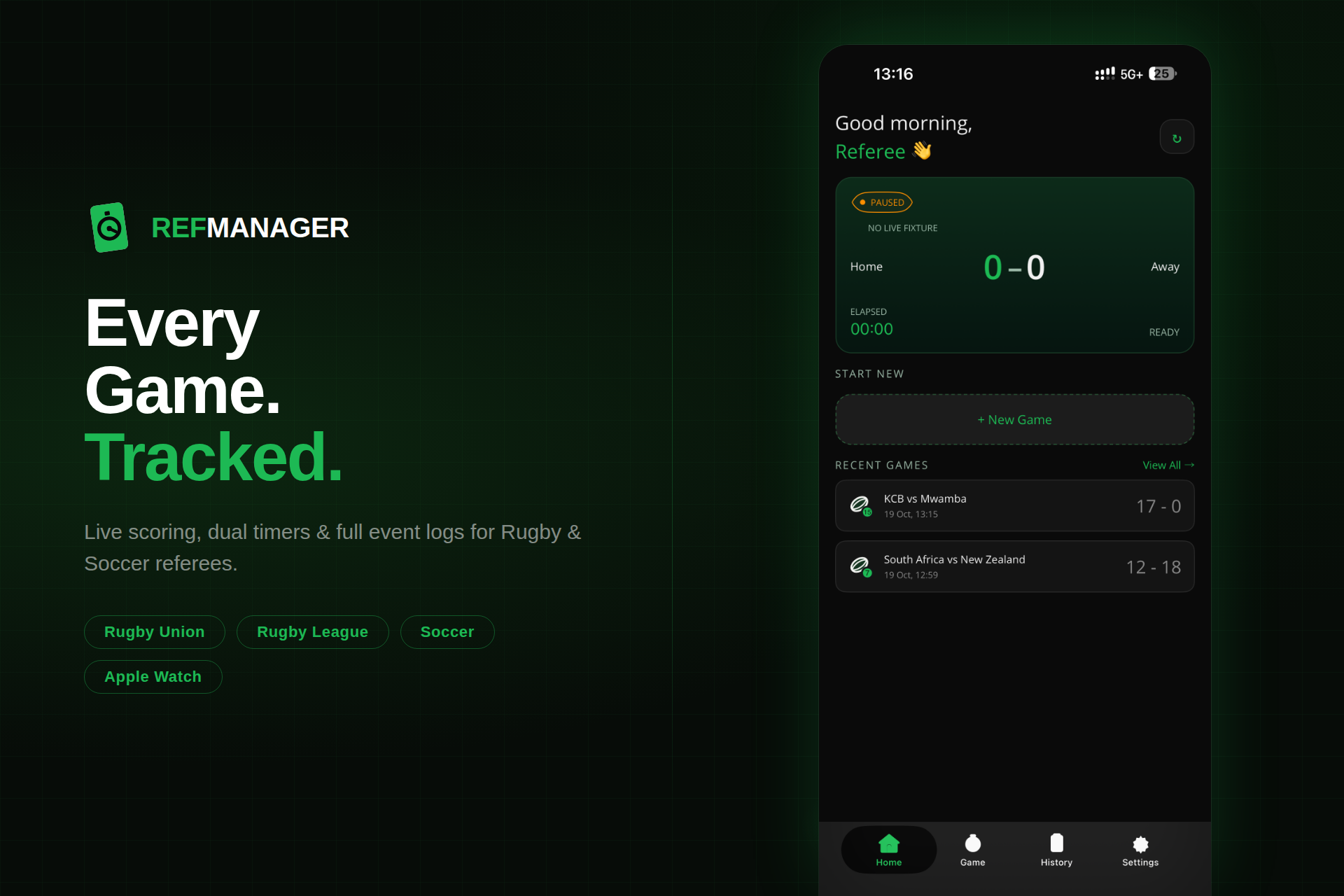
When you open RefManager, your home dashboard displays your upcoming schedule and a clean record of your recent matches.
Tap the green+ New Gamebutton to launch the setup wizard.
Step 2: Choose Your Sport & Enter Team Names
Officiating requirements vary drastically across codes. RefManager adapts its rules, timers, and scoring buttons based on the game format you select:
Select Sport:Pick your format—Rugby Union (15-a-side),Rugby Union 7s,Rugby League (13-a-side), orSoccer / Football (90 minutes).Enter Team Names:Fill in yourHome TeamandAway Teamlabels (e.g.,South Africavs.New Zealand).
Step 3: Set Kit Colours (Custom HEX or 1-Tap Presets)
Accurate kit colors make logging events during fast-paced play intuitive. RefManager ties team colors directly to your live scoreboard, event logs, and final match reports:
Tap the pencil icon next to each team’s kit swatch.Pre-Loaded National Presets:Quickly select established colorways likeSpringbok Green,All Blacks Black,England White, orFrance Blue.Custom Spectrum & HEX Codes:For club or school sides, dial in the exact club jersey color using the interactive hue slider or by entering a 6-character HEX value (e.g., #1B5E20).TapApply Colourto lock in your selections.
Step 4: Add Match Venue & Optional Player Rosters
Before heading onto the pitch, add the details that make post-match paperwork seamless:
Venue:Log where the match is played (e.g.,Ellis Park).Rosters (Optional):Assign jersey numbers and player names under theHome RosterandAway Rostersections (e.g., #1 Ox Nché).Tap the greenContinuebutton to finalize match configuration.
Referee Tip: Entering team rosters beforehand lets you pin cautions, yellow card sin bins, or tries directly to player numbers rather than scribbling on a sodden scorecard in the rain.
Step 5: Ready for Kickoff
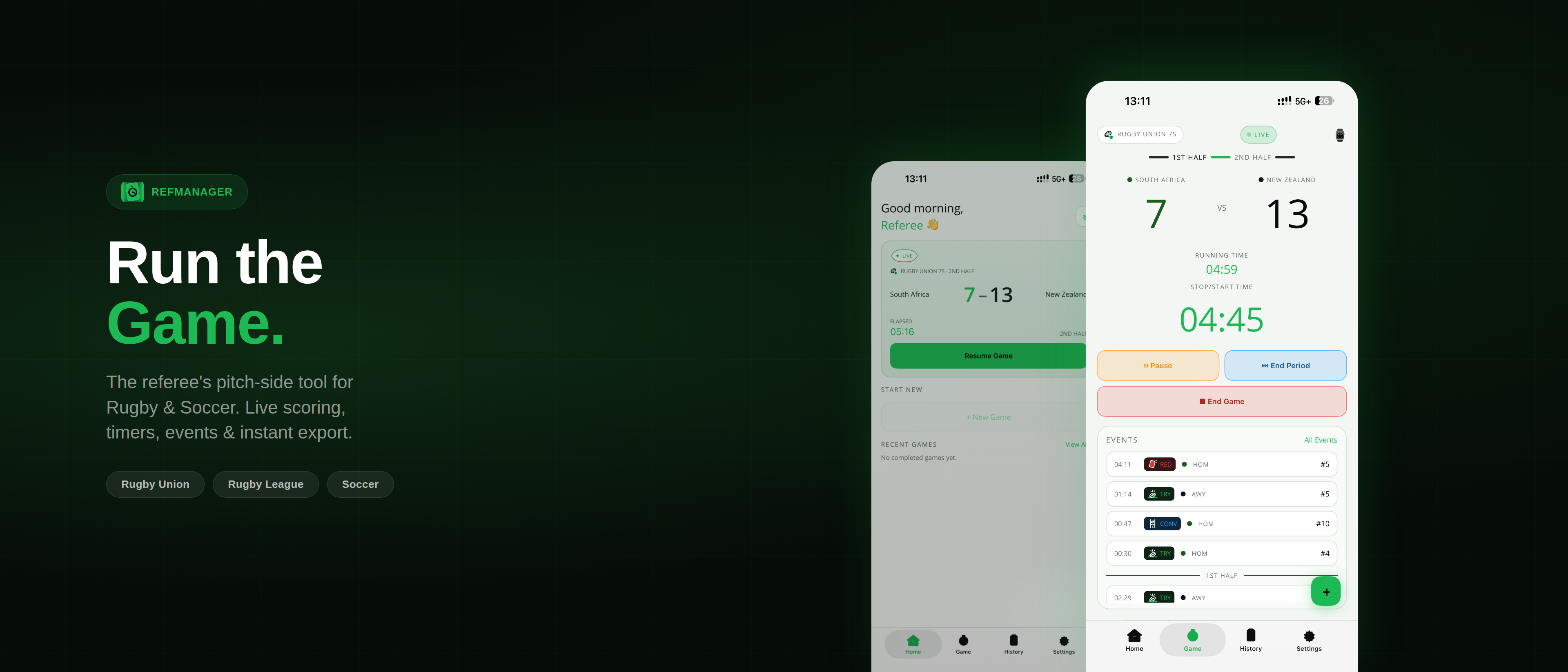
Your match is primed and ready on the live match dashboard:
Dual Clocks:RefManager tracks both totalRunning Timeand referee-controlledStop/Start Timeto ensure precise timekeeping without mental math.Smartwatch Connectivity:The watch status icon verifies active synchronization with your wearable.Event Logging:The floating+button stands ready to log tries, goals, conversions, penalties, substitutions, and disciplinary cards the moment the action begins.
When the captains are set and both teams are in position, blow the whistle and hit ▶ Start on either the mobile app or the watch companion.